7. Faceting Figures


“If a graph is worth a thousand numbers, a good graph is worth a thousand bad tests.”
— Edward Tufte
“You miss 100% of the shots you do not take.”
— Wayne Gretzky
So far we have only looked at single panel figures. But as you may have guessed by now, ggplot2 is capable of creating any sort of data visualisation that a human mind could conceive. This may seem like a grandiose assertion, but we will see if we cannot convince you of it by the end of this module. For now however, let us just take our understanding of the usability of ggplot2 two steps further by first learning how to facet a single figure, and then stitch different types of figures together into a grid. In order to aid us in this process we will make use of an additional package, ggpubr. The purpose of this package is to provide a bevy of additional tools that researchers commonly make use of in order to produce publication-quality figures. Note that library(ggpubr) will not work on your computer if you have not yet installed the package.
1 When to Facet, Overlay, or Grid
Before we write code, we need a simple decision rule:
- Facet when you want to compare subgroups within the same coordinate system and scales (e.g., Diet A vs Diet B).
- Overlay when the comparisons are most meaningful in a single panel (e.g., two groups sharing one trend line).
- Grid when you want to compare different summaries or perspectives side-by-side (e.g., time series, histogram, and boxplot together).
If you need shared scales and legends across panels, plan the composition early. It is easier to align meaning first and code second.
2 Faceting One Figure
Faceting a single figure is built into ggplot2 from the ground up and will work with virtually anything that could be passed to the aes() function. The key idea is that faceting splits the data into panels before any geometry or statistics are calculated. This means each panel gets its own model fit, summary, or smoothing line, based only on the subset of data in that panel.
Here we see how to create an individual facet for each Diet within the ChickWeight dataset.
facet_wrap() vs facet_grid()
Use facet_wrap() when you have one faceting variable (one-dimensional). Use facet_grid() when you want a two-dimensional layout across rows and columns (e.g., facet_grid(sex ~ diet)).
By default, facets share scales. This is often desirable for comparison, but it can mislead if one group is much larger or smaller than the others. If needed, allow free scales with scales = "free" so each panel can use its own axis ranges.
# Load data
ChickWeight <- datasets::ChickWeight

# Create faceted figure
ggplot(data = ChickWeight, aes(x = Time, y = weight, colour = Diet)) +
  geom_point() +
  geom_smooth(method = "lm") + # Note the `+` sign here
  facet_wrap(~Diet, ncol = 2) + # This is the line that creates the facets
  labs(x = "Days", y = "Mass (g)")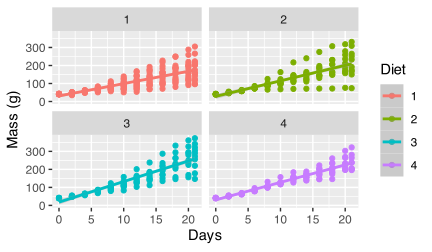
3 New Figure Types
This section takes the current ideas forward:
- Designing individual plots as reusable objects so they can be combined later.
- Choosing plot types that match specific questions, which sometimes requires filtering or reshaping the data.
Before we can create a gridded figure of several smaller figures, we need to learn how to create a few new types of figures first. The code for these different types is shown below. Notice that we assign each plot to an object (e.g., line_1, histogram_1). This is the standard workflow for composing multi-panel figures.
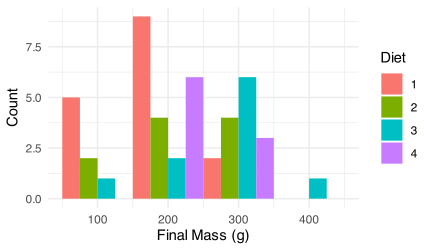
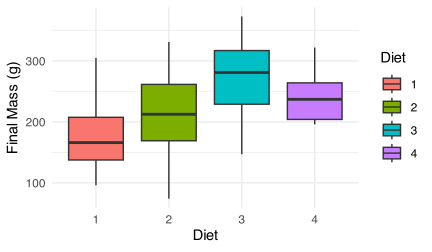
Some plot types are best suited to specific questions. For example, if you want to compare final weights by diet, it makes sense to filter to the final day. That is why we create a filtered dataset for the histogram and boxplot.
3.1 Line Graph
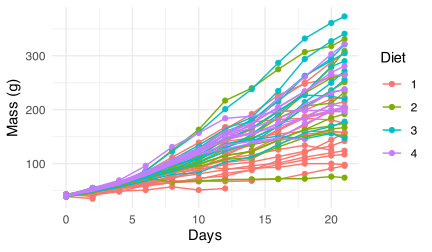
Grouping (group = Chick) keeps all data in one panel and tells ggplot2 which observations belong together for a geometry. Faceting (facet_wrap(~Diet)) splits the data into multiple panels before drawing anything. Use grouping when the comparison is clearest in a single coordinate system. Use faceting when each subgroup deserves its own panel, and you want direct visual comparison across panels.
3.2 Smooth (GAM) Model
3.3 Histogram
3.4 Boxplot
4 Gridding Figures
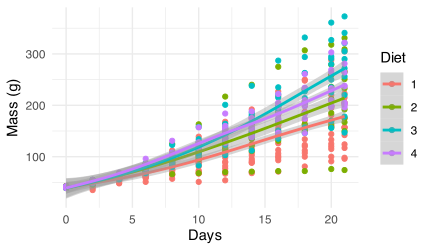
With these four different figures created we may now look at how to combine them. By visualising the data in different ways they are able to tell us different parts of the same story. For example, the line plot shows individual growth trajectories, the GAM emphasises overall trends, and the histogram and boxplot summarise final weights and their spread. These are different views of the same data, and together they reduce interpretive blind spots.
Composition is an analytic decision: grid plots that answer complementary questions, not just those that look good side-by-side.
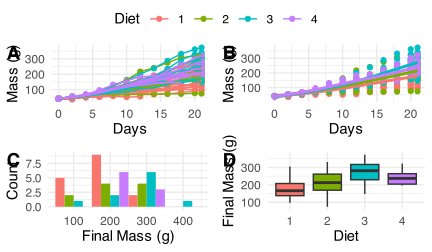
common.legend = TRUE works when plots map the same aesthetic to the same variable (e.g., colour = Diet). If legends duplicate or disappear, check whether each plot uses consistent mappings and scales.
Gridded plots can mislead if themes, factor levels, or scales differ between panels. If plots do not align or legends look odd, check that factor levels match and consider using a shared theme.
We use ggpubr because it provides a straightforward ggarrange() function. Other tools exist (e.g., patchwork), so think of this as a choice within the ecosystem, not the only path.
The above figure looks great, so let us save a copy of it as a PDF to our computer. In order to do so we will need to assign our figure to an object, then use the ggsave() function on that object.
When saving figures, remember that size and resolution matter. ggsave() will inherit the size of the last plot unless you specify width, height, and units. If you are exporting for print or assessment, add dpi = 300 (or higher). Also note that the path figures/grid_1.pdf is relative to your project root — make sure that folder exists.
If ggarrange() fails or legends duplicate, start by printing each plot object on its own. Check that all plots use the same aesthetic mappings and that factor levels are aligned. If something looks wrong in the grid but fine alone, the issue is usually a mismatched scale or theme.
Create four new graphical data summaries that we have not seen before and create a faceted layout with the ggarrange() function as we have seen in the example provided in this chapter.
Make sure the above assignment is included within a Quarto file rendered to .html. Include some textual information to inform the reader of the intent of the plots and what patterns are visible.
Reuse
Citation
@online{smit2021,
  author = {Smit, A. J.},
  title = {7. {Faceting} {Figures}},
  date = {2021-01-01},
  url = {https://tangledbank.netlify.app/BCB744/intro_r/07-faceting.html},
  langid = {en}
}