11. Mapping with Natural Earth


“In the beginning there was nothing, which exploded.”
— Terry Pratchett
“Biology is the study of complicated things that have the appearance of having been designed with a purpose.”
— Richard Dawkins
1 Orientation: What You Are Here to Learn
Up to now, your maps have likely been drawn rather than reasoned about. This chapter shifts you from decorative mapping to spatial reasoning with data structures that carry geometry, scale, and assumptions. The goal is to make them more defensible.
1.1 Learning goals
By the end of this chapter you should be able to:
- Explain what an
sfobject is (features, attributes, geometry column, CRS). - Subset and transform spatial features without losing geometry.
- Produce layered maps in base R and ggplot2 with explicit spatial choices.
1.2 Workflow overview
When you are working independently, aim for this repeatable sequence:
- Load data and inspect the geometry and CRS.
- Subset features (rows) and attributes (columns) intentionally.
- Crop or transform geometry only when you mean to.
- Plot in base R or ggplot2, then refine.
1.3 Web resources for spatial work in R
These are reference texts, not required reading. Use them as technical back-up when you get stuck or want to go deeper.
| Author | Title |
|---|---|
| Spatial R | |
| Edzer Pebesma | Simple Features for R |
| Edzer Pebesma, Roger Bivand | Spatial Data Science with applications in R |
| Robin Lovelace et al. | Geocomputation with R |
| Manuel Gimond | Intro to GIS and Spatial Analysis |
| Wasser et al. | Introduction to Geospatial Raster and Vector Data with R |
| Taro Mieno | R as GIS for Economists |
1.4 What to Aspire to
Please see the snooty maps at Making Static Maps in R. The skills you acquire in this module should eventually allow you to do similar maps.
2 The sf Package
At this point you need data structures that carry geometry and behave sensibly under spatial operations. The sf package provides exactly that, and it has become the de facto tool for many mapping applications, replacing older packages such as sp. It provides classes for storing and manipulating simple feature geometries and functions for working with spatial data. Simple features refer to a standardised way of encoding vector data — points, lines, and polygons — used widely in GIS.
The sf package was created to provide a fast and efficient way to work with vector data in R. It integrates with other tidyverse packages, such as dplyr and ggplot2, allowing for seamless processing and visualisation of spatial data. The package provides a variety of functions for data import, transformation, manipulation, and analysis, making it a valuable tool for working with spatial data in R.
In addition to its core functionality, the sf package also provides a set of methods for converting between different data representations, such as data frames, matrices, and lists, making it a versatile tool for working with spatial data in a variety of formats.
While sf works with vector data, raster data require the well-known but older raster package, or its modern replacements terra, stars. I will not work with raster data in this chapter.
3 Maps With rnaturalearth
Natural Earth is a public domain map dataset that provides high-quality, general-purpose base maps for the world at various scales. It is an ideal stepping stone when map_data() and hand-drawn polygons become too crude or too brittle for serious work. It was designed to be a visually pleasing alternative to other public domain datasets, and its creators aim to provide the data in a form that is useful for a wide range of applications, to make it easy to use and integrate with other data.
The dataset includes a variety of geographic features, including coastlines, rivers, lakes, and political boundaries, as well as cultural features like cities, roads, and railways. The data are available in several formats, including vector and raster, and they can be used with a variety of software, including GIS and mapping applications. Within R we can access these map layers using the rnaturalearth package.
One of the key benefits of Natural Earth is its public domain status, which means that anyone can use, distribute the data without restrictions or licensing fees. This makes it an ideal choice for individuals who need high-quality base maps for their projects but may not have the resources or expertise to create them from scratch. I am not convinced that students actually read this. The first person to send me a WhatsApp mentioning the phrase “Know your maps” will get a Lindt chocolate.
In addition to its public domain status, Natural Earth is regularly updated with new data to ensure that the maps remain accurate and up to date. This makes it a valuable resource for anyone who needs reliable geographic data.
4 Install Packages and Set Things Up
sf_use_s2()
The s2 engine treats the Earth as a sphere. Some operations — notably buffering — behave differently under spherical versus planar assumptions. Turning s2 off can be useful for small regional maps, but it does not make distances in degrees suddenly meaningful. If you need accurate distances, use a projected CRS and keep s2 on.
4.1 Define a working extent
First, I define the extent of the map region:
# the full map extent:
xmin <- 12; ymin <- -36.5; xmax <- 40.5; ymax <- -10
xlim <- c(xmin, xmax); ylim <- c(ymin, ymax)

# make a bounding box for cropping:
bbox <- st_bbox(c(xmin = xmin, ymin = ymin,
  xmax = xmax, ymax = ymax))

# might be useful for zooming into a smaller region (False Bay and
# the Cape Peninsula):
xlim_zoom <- c(17.8, 19); ylim_zoom <- c(-34.5, -33.2)
Choosing bounds is a cartographic decision. If you clip too tightly you can hide relevant context; if you clip too loosely you dilute the focus of the map. Cropping can also cut features that cross the boundary (and cuase complications, which are very difficult to rectify), so use it deliberately.
5 Create and Inspect an sf Object
Before we draw anything, we will load a spatial object, then inspect it. This is the point where your thinking should shift from “plots” to “features with geometry”.
5.1 Load features from Natural Earth
The object now contains features (rows) with attributes (columns) plus a geometry column that stores the spatial shapes. That geometry persists unless you explicitly alter it.
5.2 Inspect the geometry and CRS
Pause here and check what makes this different from a normal tibble.
sf Class
sf indicates that the object is of class simple features. In sf language, what would be called columns (variables) in normal tidyverse speak becomes known as attributes — these are the properties of the map features. The geometry column stores the shapes; the CRS stores the spatial reference system.
The CRS tells you how the coordinates should be interpreted. You do not need to manipulate CRS yet, but you do need to be aware that distance and area calculations depend on it.
As you can see, it is a data.frame and tbl (tibble), amongst other classes, and so you can apply many of the tidyverse functions to it, including select(), filter(), summarise() and so on. These verbs act on attributes unless you explicitly change geometry with sf functions.
5.3 Plot quickly in base R
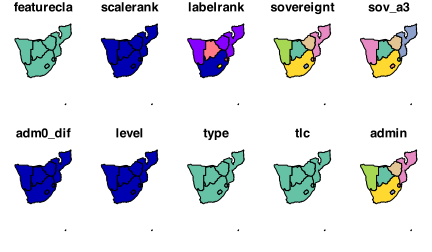
Let us plot the entire safrica_countries object to see all the attributes of all of the features. This kind of figure is called a choropleth map:
Use select() to choose attributes (columns). Use filter() to choose features (rows). Neither operation recalculates geometry; the shapes persist unless you explicitly transform them.
You probably do not want to plot all of them. Let us select one:
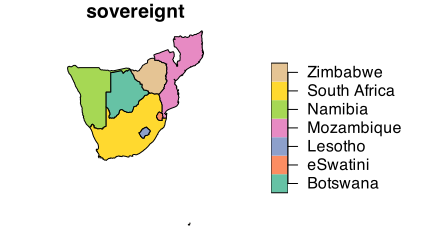
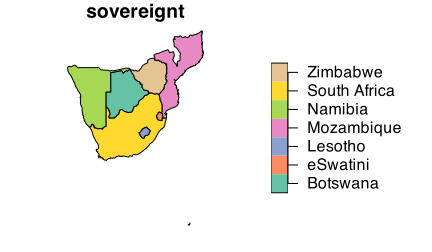
You might achieve the same in a more familiar way:
Or you may want to plot the estimate of the population size, which is contained in the attribute pop_est:
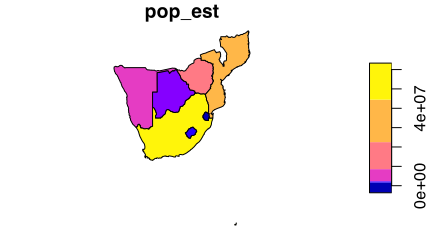
The names of the countries are in the rows of the safrica_countries object, and so they become accessible with filter(). Let us only plot some attribute for South Africa:
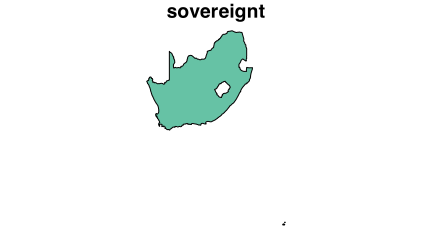
5.4 Dissolve and crop features (geometry changes)
The following sequence is dense, so here is the logic before the code:
-
group_by(continent)groups features so that later operations can dissolve borders. -
summarise()collapses grouped features into a single geometry per group. -
st_crop(bbox)clips the geometry to your bounding box. This can cut features at the boundary. -
st_combine()merges the pieces into a single multipart feature.
Cropping is a geometric operation, but sometimes it may be used as a visual zoom. Features that fall partly inside the box will be clipped.
You can continue to add additional operations to create a new map:
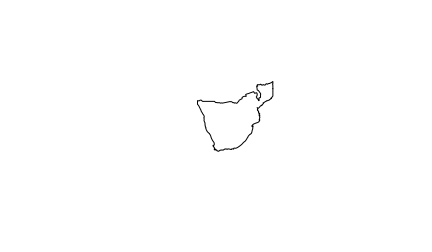
So far you have relied on the base R plot function made for simple features. You can also plot the map in ggplot2 using ggplot(), which treats geometry as data rather than annotation. Here, geom_sf() draws the features and coord_sf() manages the spatial coordinates and aspect ratio. This is why coord_sf() is preferred to coord_cartesian() for maps.
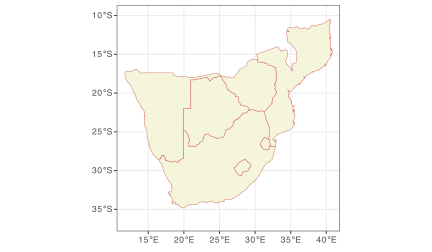
5.5 Buffering and geometry assumptions
Now you can layer another feature. This is also where geometry assumptions matter: buffering in degrees is only a rough approximation for local maps.
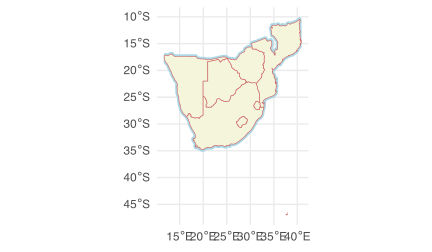
If a buffer value “looks right” in degrees, that is an accident of scale. For accurate distances, project your data first and buffer in metres.
6 A Reusable Workflow
When you start from scratch, use this quick recipe:
- Load spatial data and check
st_crs()and geometry types. - Filter features (rows) and select attributes (columns) deliberately.
- Crop or transform geometry only when you intend to change shape.
- Plot with
plot()or ggplot2; add layers and styling last.
- Buffering or measuring in degrees instead of projected units.
- Cropping after styling, which hides clipped features or labels.
- Assuming
select()orsummarise()recalculates geometry. - Using
coord_cartesian()for maps and silently distorting aspect ratio. - Treating Natural Earth borders as definitive boundaries when precision matters.
7 Example
Here are examples that use the built-in Fiji earthquake data or the Kaggle earthquake data.
Reuse
Citation
@online{smit2021,
  author = {Smit, A. J.},
  title = {11. {Mapping} with {Natural} {Earth}},
  date = {2021-01-01},
  url = {https://tangledbank.netlify.app/BCB744/intro_r/11-mapping_rnaturalearth.html},
  langid = {en}
}